

Uploading
In the Alex app, go to Settings > Knowledge Base and click the Uploads card.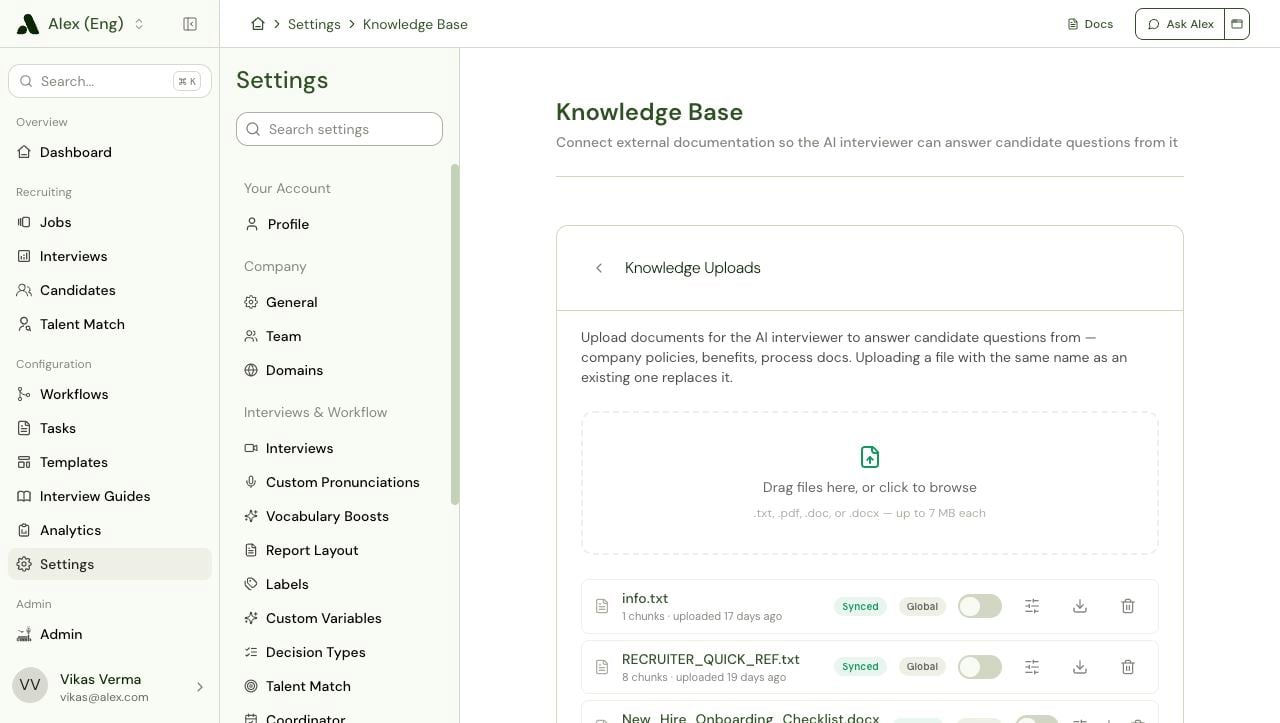
Managing Uploaded Documents
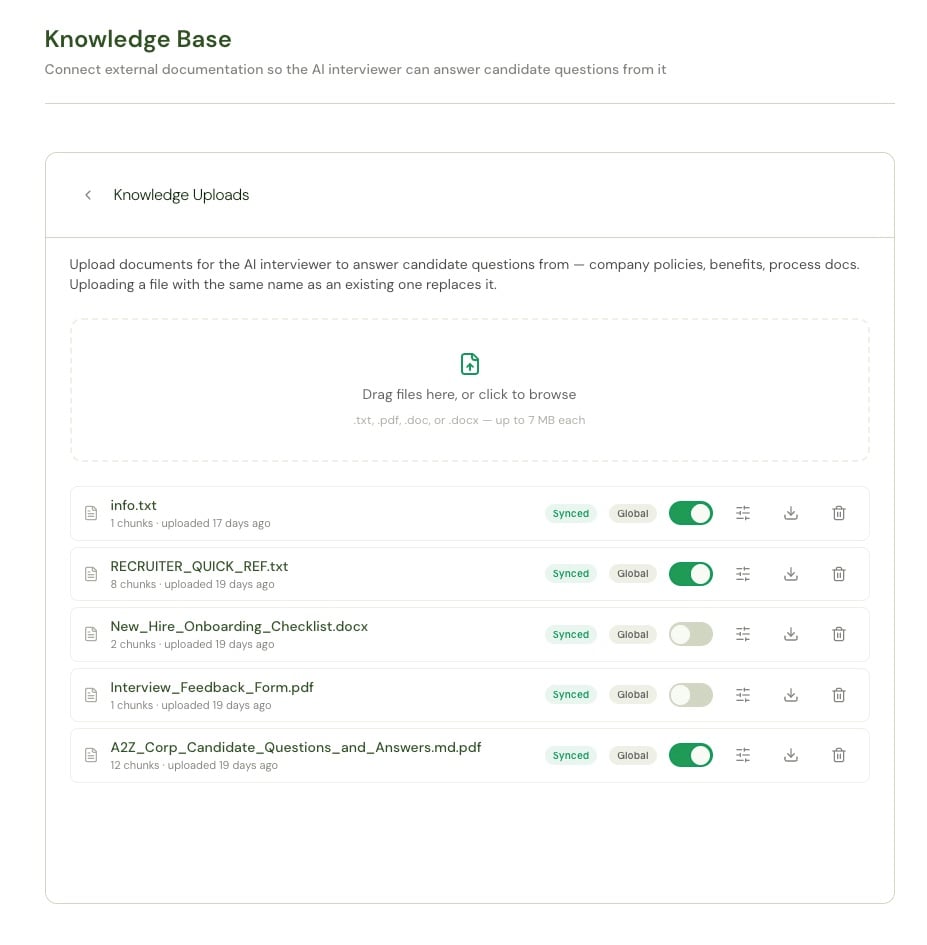
Replacing a document
Upload a file with the same name as an existing one and it replaces it. This is the intended way to publish an update — the old version stops being answerable as soon as the new one finishes processing.Because replacement is keyed on the file name, keep names stable across revisions.
benefits-guide.pdf updated in place is much easier to manage than benefits-guide-v2-final.pdf sitting alongside the original.Turning a document off
Switching a document off excludes it from Alex’s answers immediately, while keeping it in the list and keeping its indexed content — so switching it back on is instant. Use this rather than deleting when a policy is temporarily out of date.When Processing Fails
A document that can’t be read shows a Failed status. Alex’s message tells you what to do: fix the file and re-upload it with the same name to retry. Common causes:- The PDF is a pure image with no text layer and OCR couldn’t read it — try a higher-quality scan.
- The file is password-protected or otherwise encrypted.
- The file is corrupt, or its extension doesn’t match its actual format (a
.docxthat’s really a.pagesfile, for instance).
Uploads vs. Connected Sources
Use an upload when
The content is stable, self-contained, and doesn’t have a natural home in a connected tool — or you want something answerable today without waiting on an integration.
Use a connected source when
The content is already maintained somewhere and changes over time. Syncing means Alex tracks the edits automatically; an upload has to be replaced by hand.