

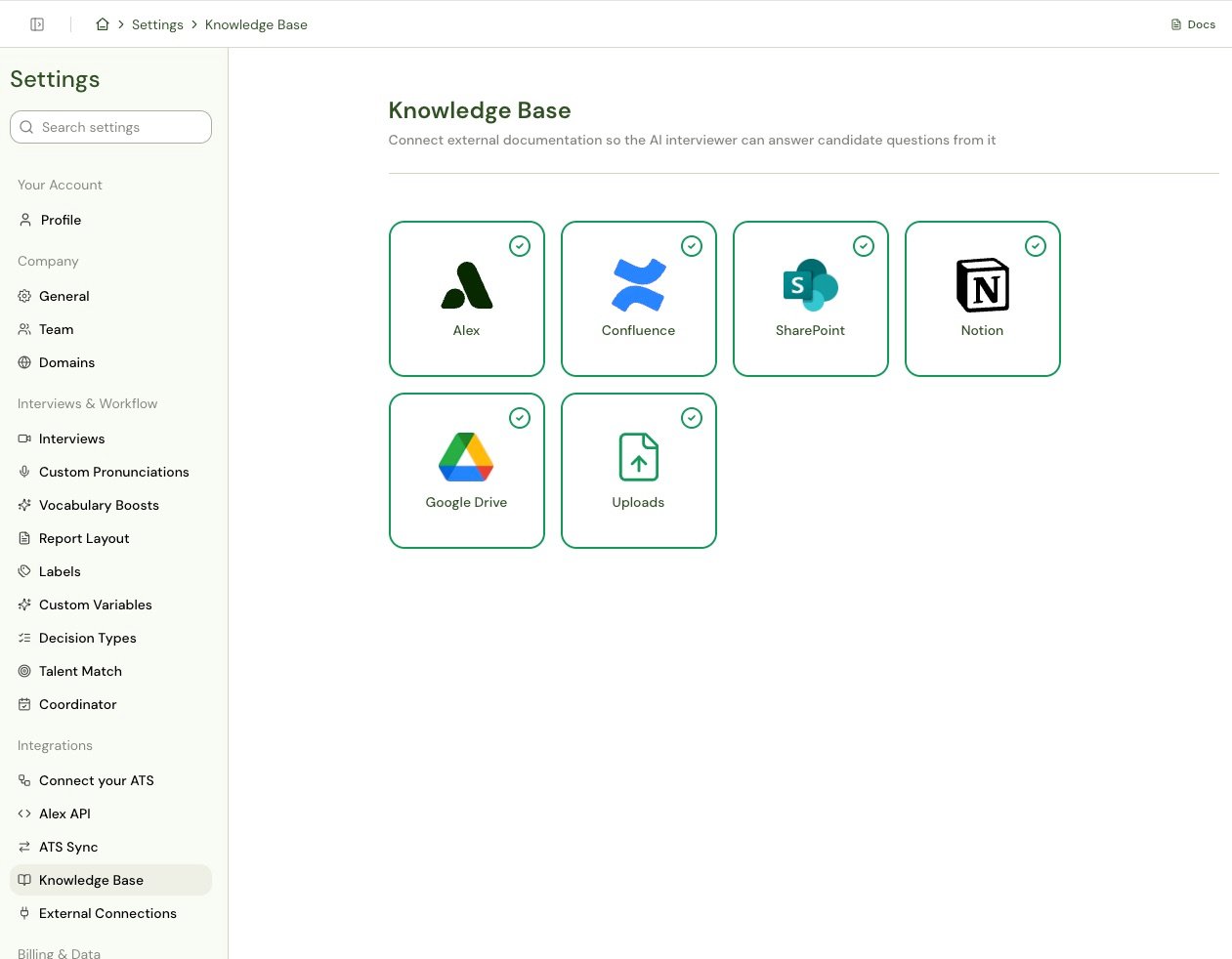
The Knowledge Base is admin-only. Users without company management permissions won’t see it in Settings.
Sources
Confluence
Sync selected Confluence spaces, filtered by label and freshness.
SharePoint
Sync site pages and document libraries from your Microsoft tenant.
Notion
Sync the pages and databases you share with the Alex integration.
Google Drive
Sync folders from My Drive, shared drives, or items shared with the account.
Uploads
Upload documents directly when the content doesn’t live in a connected tool.
Global context
Type context and instructions straight into Alex — no connection needed.
The Confluence, SharePoint, Notion, and Google Drive connections are being rolled out gradually. If you don’t see them in your Settings, ask your Alex representative to enable them for your company. Uploads and global context are available to everyone.
How It Works
1
Connect the source
An admin authorizes Alex against your Confluence site, Microsoft tenant, Notion workspace, or Google account. Alex requests read-only access, and the connection belongs to the company — one per source, not one per user.
2
Choose what syncs
Every connection opens onto a picker — spaces, sites and libraries, pages and databases, or drives and folders. Nothing syncs until you select it. There is no “sync everything” default, deliberately: anything you sync becomes something Alex can say out loud to a candidate.
3
Alex syncs and indexes
Selected content is fetched, split into chunks, and indexed so it can be searched by meaning rather than by keyword. Alex re-checks each connection every 15 minutes and only re-indexes documents that actually changed.
4
Alex answers from it
When a candidate asks something Alex can’t already answer, it searches the indexed content and answers from what it finds. If nothing relevant comes back, it says it doesn’t have that information and offers to pass the question to the recruiting team.
Alex only ever reads. It never writes back to Confluence, SharePoint, Notion, or Drive, and it never edits, moves, or deletes anything in the connected tool.
What Candidates Experience
Alex doesn’t announce that it’s looking something up, and it never reads out a document title or link. It acknowledges the question briefly in its own voice, looks up the answer in the background, and continues. It answers only from what the lookup actually returned — if the retrieved material doesn’t cover the question, Alex says so instead of guessing. The same content backs Alex’s text conversations with candidates — SMS, WhatsApp, and chat — not just live interviews.This is separate from Ask Alex, the assistant you use inside the Alex app. Ask Alex searches Alex’s own product documentation; it does not search your Knowledge Base.
Connection States
Each source card shows its state at a glance, and the connection panel shows it in full.
If a sync run hits a problem without the connection itself breaking, the panel shows an amber banner reading “Last sync reported a problem” with the detail. The connection keeps working and the next run retries.
To remove a connection entirely — deleting its synced documents and their embeddings — contact Alex support.
Sync Behavior
- Every 15 minutes. Alex checks each connected source on a fixed cadence. There is no “Sync now” button.
- First run is a full crawl, later runs are incremental. Documents whose content hasn’t changed are skipped rather than re-indexed.
- Saving your selection forces a full re-crawl on the next cycle. If you want Alex to re-read everything, change and save the connection’s configuration.
- Deletions propagate. A page removed at the source is removed from Alex. If a selected space, folder, or page is unreachable during a run — an outage, or a permission change — Alex skips deletion processing for that run rather than risk clearing your content.
Choosing What Alex Can Answer
Three controls stack, from broadest to narrowest:- What syncs — the spaces, sites, folders, or pages you tick in the connection panel. Anything you don’t select is never fetched at all.
- Per-document on/off — inside a space or library, you can switch individual pages and files off. They stop syncing and are excluded from answers, but their indexed content is kept so re-enabling is instant.
- Job scope — a document can be answerable in every interview (Global) or only in interviews for jobs matching conditions you set. See Scoping documents to jobs.
Global Context
The Alex card isn’t a connection — it’s free text that goes to Alex on every interview, for context too small or too changeable to keep in a document.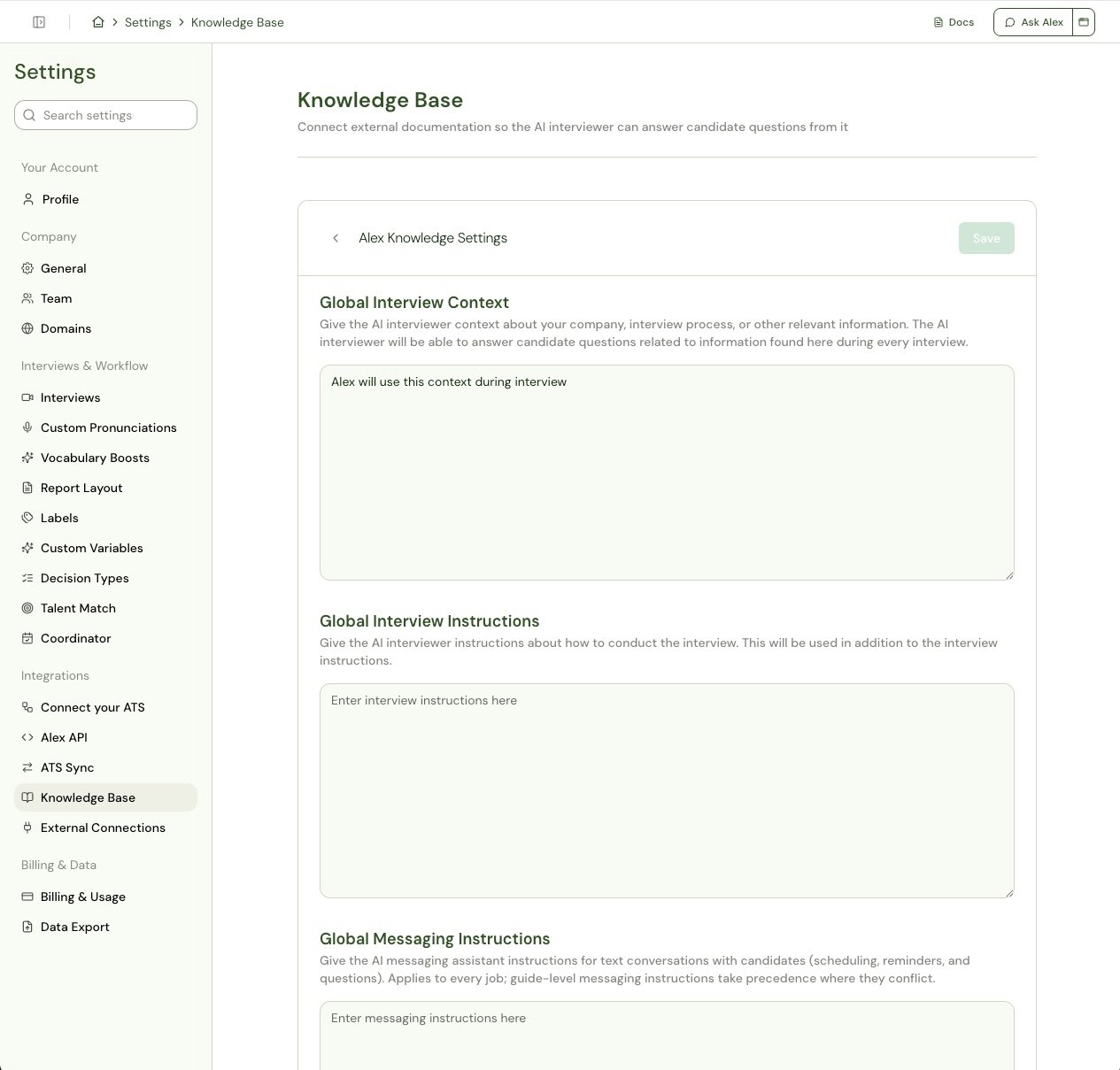
Limits
If a company has no synced, enabled documents, Alex behaves exactly as it did before the Knowledge Base existed — it simply doesn’t look anything up.