

Overview
You authorize Alex against one Microsoft tenant, then choose sites and, within them, document libraries. Site pages and library files are indexed separately, so you can take a site’s pages without its files, or the reverse. Access is read-only. Alex never uploads, edits, moves, or deletes anything in SharePoint.Permissions Requested
Installation
1
Open the Knowledge Base settings
In the Alex app, go to Settings > Knowledge Base and click the SharePoint card.
2
Connect
Click Connect, sign in with a Microsoft account on your tenant, and approve the permissions. You’ll return to Alex with the message “SharePoint connected — choose which sites and libraries to sync”.
3
Choose sites and libraries
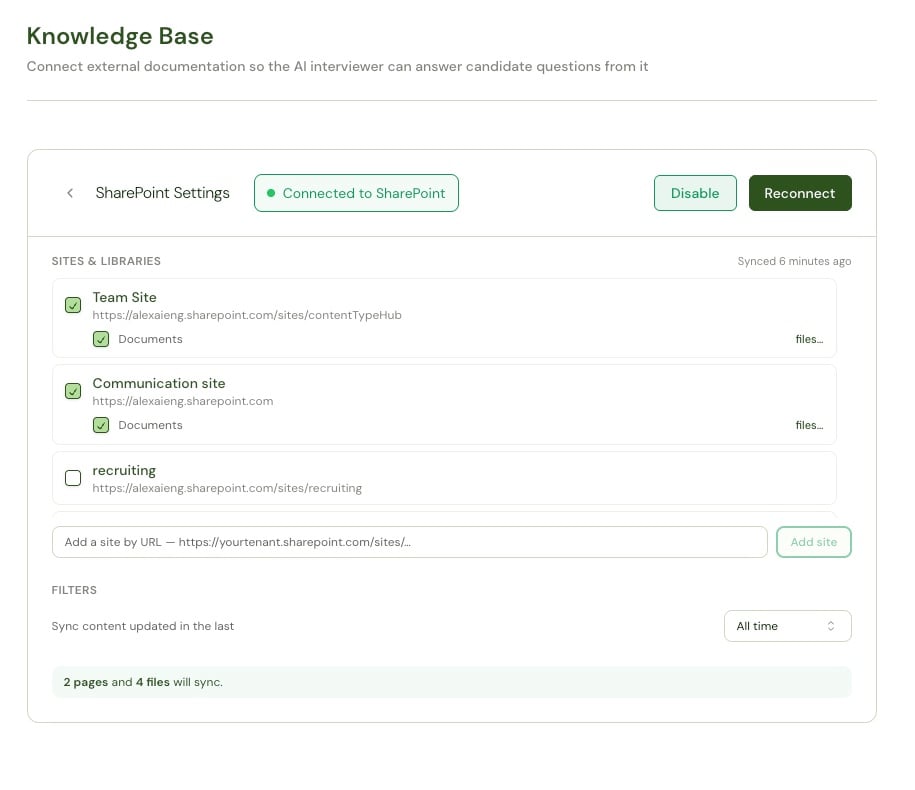
Tick the sites Alex may read pages from, and tick the document libraries inside them whose files should sync.
4
Save
Click Update Connection. The first sync starts within 15 minutes.
Connect with a durable service or ops account rather than an individual’s. If you later need to Reconnect, you must authorize against the same Microsoft tenant.
Choosing What Syncs
Sites and libraries
Ticking a site opts its site pages into the sync. Ticking a document library beneath it — usually named Documents — opts that library’s files in. The two are independent. If a site you want doesn’t appear in the list, paste its URL into the Add a site by URL field (https://yourtenant.sharepoint.com/sites/...) and click Add site.
The summary line previews the result — for example, “2 pages and 4 files will sync.”
Per-file control
Click files… next to a library to open its file list.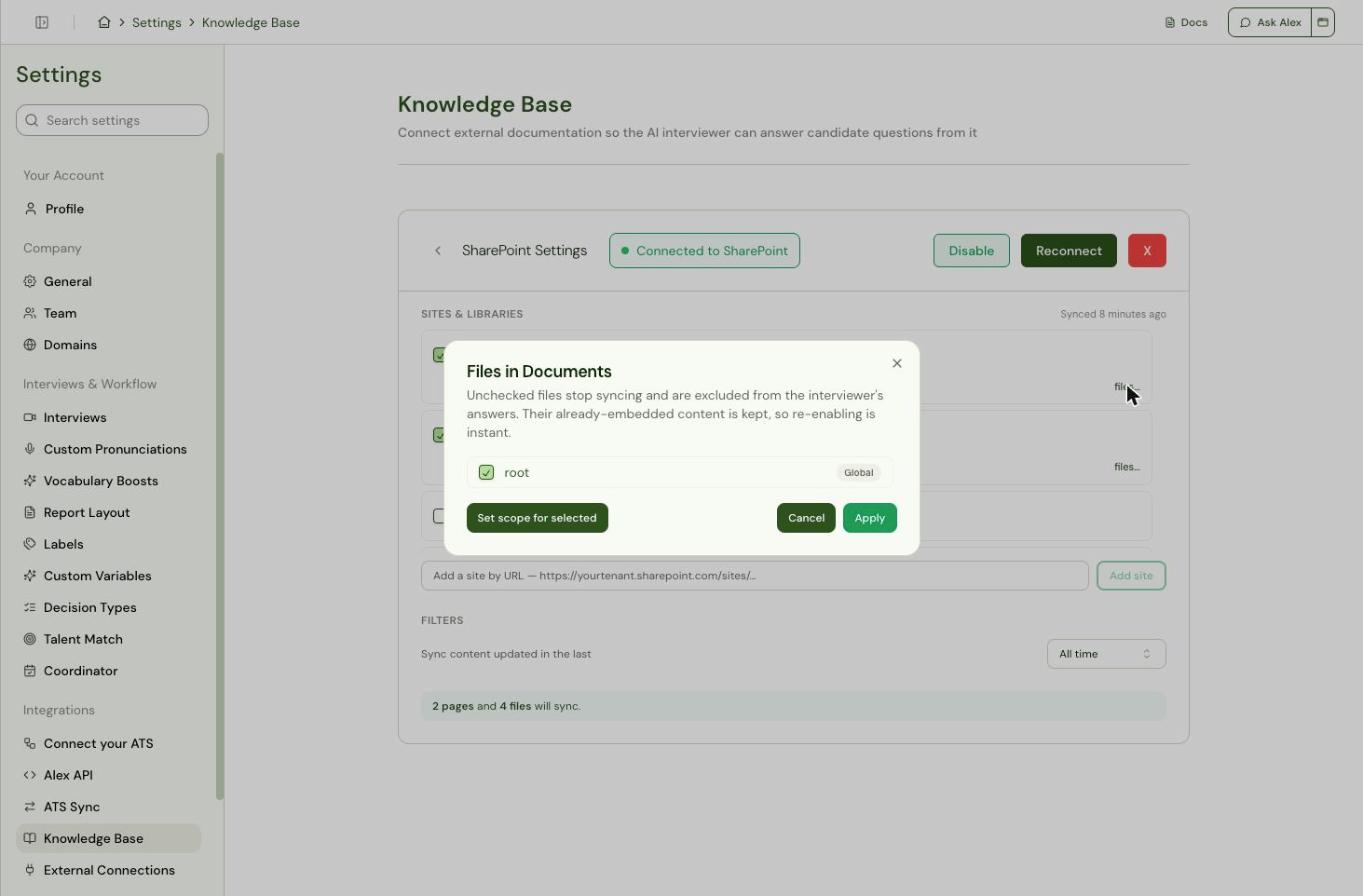
Filters
Sync content updated in the last limits both pages and files by how recently they were modified:7 days, 30 days, 90 days, 6 months, 1 year, or All time (the default).
Supported Files
Anything else in the library — spreadsheets, images, media, larger files — is skipped. Skipped files don’t cause the sync to fail; they’re simply not indexed.
Sync Behavior
- Alex checks the connection every 15 minutes. There’s no manual sync button.
- The first run is a full crawl; later runs pick up only what changed.
- Pages and files deleted in SharePoint are removed from Alex. If a selected site or library is unreachable during a run, Alex skips deletion processing that run rather than risk clearing your content.
- Saving your selection makes the next run a full re-crawl.
Pausing and Reconnecting
- Disable pauses syncing and retrieval while preserving the indexed content, so Enable takes effect immediately.
- Reconnect re-runs authorization when the grant has been revoked in Microsoft 365.
Troubleshooting
Reconnection must use the same Microsoft tenant
Reconnection must use the same Microsoft tenant
Alex pins the connection to the tenant it was created against. Authorize with an account on the original tenant. Existing synced content is untouched.
A site I need isn't in the list
A site I need isn't in the list
Use the Add a site by URL field with the site’s full address. If it still doesn’t resolve, confirm the authorizing account can open that site in a browser.
Some files in a library never sync
Some files in a library never sync
Check the file type and size against the table above — only
.pdf, .docx, .doc, and .txt under 25 MB are indexed. Also check the freshness window, which applies to files as well as pages.