

Overview
You authorize Alex against one Confluence site, pick which spaces to sync, and optionally narrow further by label and by how recently pages were edited. Alex re-checks the site every 15 minutes and keeps its copy in step with yours. Access is read-only. Alex never creates, edits, moves, or deletes anything in Confluence.Permissions Requested
Alex requests Atlassian’s granular scopes. Your Atlassian administrator may need to approve the app the first time someone connects it.
Installation
1
Open the Knowledge Base settings
In the Alex app, go to Settings > Knowledge Base and click the Confluence card.
2
Connect
Click Connect. You’ll be sent to Atlassian to sign in and approve the permissions above, then returned to Alex with the message “Confluence connected — choose which spaces to sync”.
3
Choose your spaces
Tick the spaces whose pages Alex may answer from. Nothing syncs until you do this.
4
Save
Click Update Connection. The first sync starts on the next cycle, within 15 minutes.
Choosing What Syncs
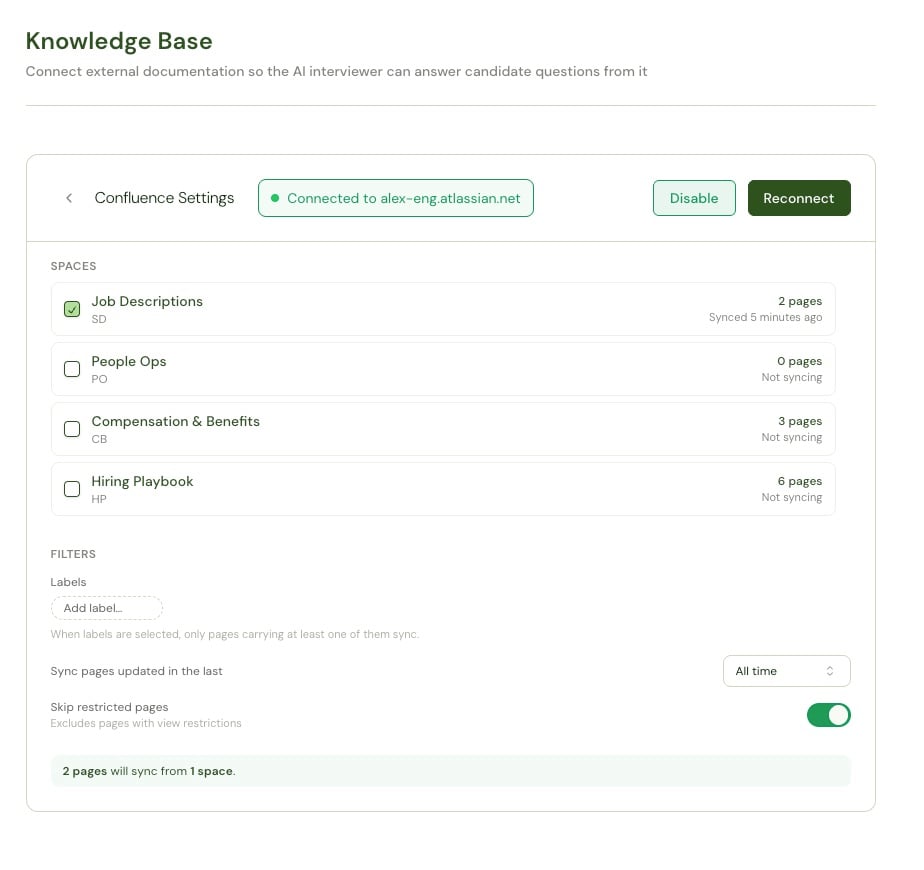
Spaces
Each space row shows its key, how many pages currently match your filters, and when it last synced. Unselected spaces read Not syncing. Click the page-count link on a space to open its page list, where you can switch individual pages off or scope them to specific jobs. A page switched off stops syncing and is excluded from answers, but its indexed content is kept, so switching it back on is instant.Filters
A summary line at the bottom of the panel previews the result — for example, “2 pages will sync from 1 space.” Check it before saving.
Sync Behavior
- Alex checks the connection every 15 minutes. There’s no manual sync button.
- The first run is a full crawl of the selected spaces; later runs pick up only what changed.
- Pages deleted or archived in Confluence are removed from Alex.
- Saving your selection makes the next run a full re-crawl.
Pausing and Reconnecting
- Disable pauses the connection: nothing syncs and nothing is used in answers, but the indexed content is preserved so Enable takes effect immediately.
- Reconnect re-runs authorization — use it when the panel says the connection needs re-authorizing, which happens if the grant is revoked in Atlassian.
Troubleshooting
Reconnection must use the same Confluence site
Reconnection must use the same Confluence site
Alex pins the connection to the site it was first created against. Authorize with an account on the original site. Your existing synced content is untouched — nothing was lost.
A space shows fewer pages than I expect
A space shows fewer pages than I expect
Check all three filters. Skip restricted pages hides anything with view restrictions, a label filter excludes untagged pages, and the freshness window excludes pages not edited recently enough. Set the window to All time and clear the labels to see the unfiltered count.
Last sync reported a problem
Last sync reported a problem
A run hit an error but the connection is still valid — usually a transient Atlassian API issue. Alex retries on the next cycle. If the banner persists for more than an hour, contact Alex support with the message shown.