

Overview
You authorize Alex with a single Google account, then browse that account’s Drive and tick the folders and shared drives whose files should sync. What Alex can see is exactly what that account can see. Access is read-only. Alex never uploads, edits, moves, or deletes anything in Drive.Permissions Requested
Installation
1
Open the Knowledge Base settings
In the Alex app, go to Settings > Knowledge Base and click the Google Drive card.
2
Connect
Click Connect, sign in with the Google account, and approve read-only Drive access. You’ll return to Alex with the message “Google Drive connected — choose which drives and folders to sync”.
3
Pick folders
Browse the tree and tick the shared drives and folders whose files Alex may answer from.
4
Save
Click Update Connection. The first sync starts within 15 minutes.
Choosing What Syncs
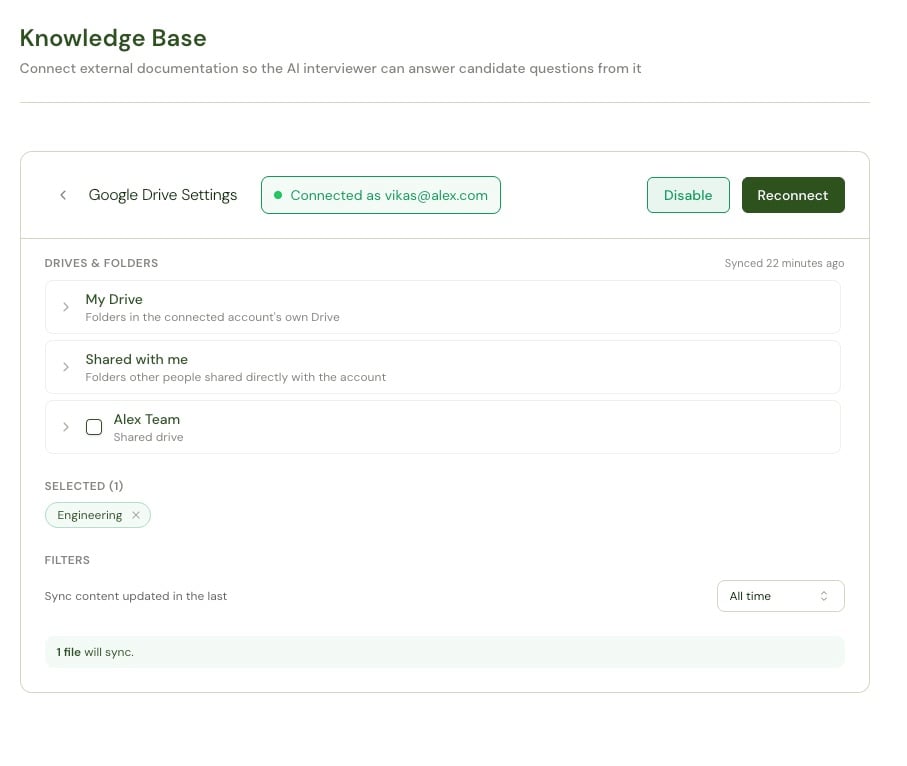
Expand any row to browse into it and select folders at any depth. You can also tick a whole shared drive.
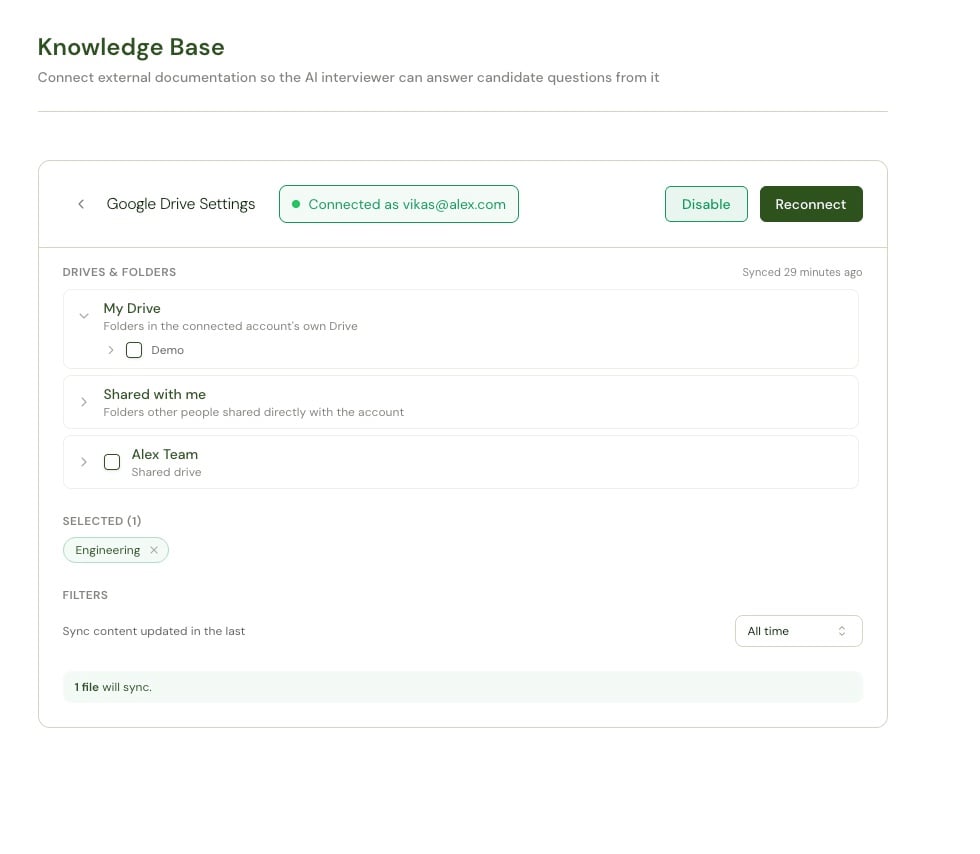
7 days, 30 days, 90 days, 6 months, 1 year, or All time (the default).
Supported Files
Google Forms, Drawings, Sites, and shortcuts are skipped — there’s no text worth indexing. Other file types and oversized files are skipped too. Skipped files don’t fail the sync; they’re simply not indexed.
Google Docs, Sheets, and Slides have no size limit, because Alex reads them through Drive’s export rather than downloading the file.
Sync Behavior
- Alex checks the connection every 15 minutes. There’s no manual sync button.
- The first run is a full crawl of the selected folders; later runs pick up only what changed.
- Files deleted or moved out of a selected folder are removed from Alex. If a selected folder is unreachable during a run, Alex skips deletion processing that run rather than risk clearing your content.
- Saving your selection makes the next run a full re-crawl.
Unreachable Folders
If a selected folder or shared drive can no longer be read, the panel warns that some selected locations are no longer reachable — they may have been deleted or un-shared. Common causes: the folder was deleted, it was un-shared from the connected account, or the account was removed from a shared drive. Re-share the folder with the connected account, or untick it in Alex and pick another.Pausing and Reconnecting
- Disable pauses syncing and retrieval while preserving indexed content, so Enable takes effect immediately.
- Reconnect re-runs authorization when the grant has been revoked in Google.
Troubleshooting
Reconnection must use the same Google account
Reconnection must use the same Google account
Alex pins the connection to the account it was created with. Sign in as that account. If the account no longer exists, the connection has to be set up fresh — contact Alex support.
Some files in a selected folder never sync
Some files in a selected folder never sync
Check the file type against the table above — Forms, Drawings, Sites, shortcuts, and unsupported types are skipped, as are uploaded files over 25 MB. Also check the freshness window.