

Overview
Notion works differently from the other sources: you choose what Alex can see on Notion’s own authorization screen, by ticking the pages you share with the integration. Alex can never see more than you shared there — the picker inside Alex only narrows that set further. Access is read-only. Alex never creates, edits, or deletes anything in Notion.Permissions Requested
Notion doesn’t use scope strings. Instead, during authorization you select which pages and databases the Alex integration may access, and Notion grants read access to exactly those — plus anything nested beneath them.Notion access tokens don’t expire and there’s no background refresh. If access stops working, the grant was removed in Notion rather than having timed out — reconnect to restore it.
Installation
1
Open the Knowledge Base settings
In the Alex app, go to Settings > Knowledge Base and click the Notion card.
2
Connect
Click Connect. Notion asks you to sign in and then shows a page picker — tick every page and database Alex should be able to read. This is the decision that matters; Alex can’t widen it later.
3
Choose what syncs
Back in Alex you’ll see “Notion connected — choose which pages and databases to sync”. Tick the roots you want indexed.
4
Save
Click Update Connection. The first sync starts within 15 minutes.
Choosing What Syncs
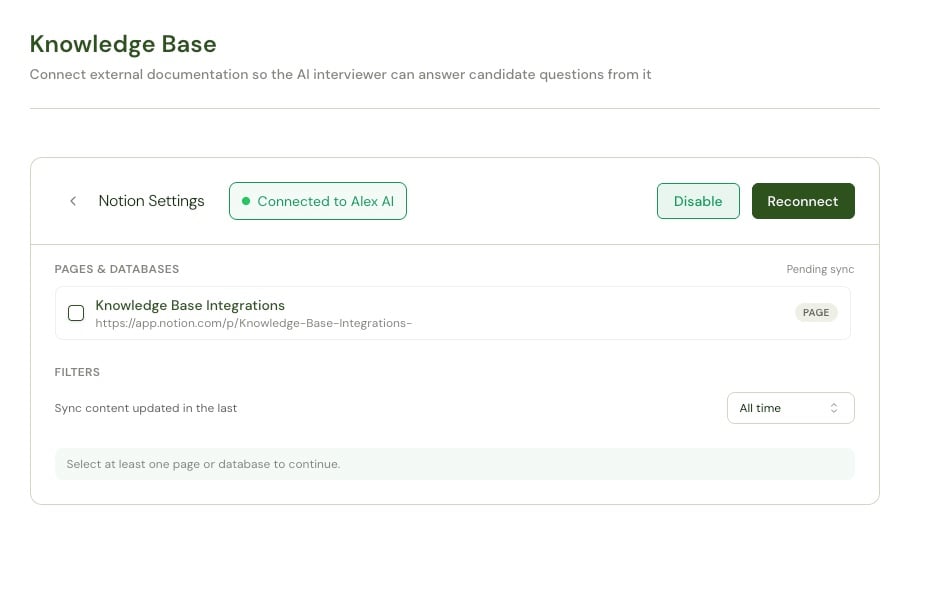
7 days, 30 days, 90 days, 6 months, 1 year, or All time (the default).
Sync Behavior
- Alex checks the connection every 15 minutes. There’s no manual sync button.
- The first run is a full crawl of the selected roots; later runs pick up only what changed.
- Pages deleted or un-shared in Notion are removed from Alex.
- Saving your selection makes the next run a full re-crawl.
- Up to 5,000 documents per connection.
Unreachable Roots
If a page, database, or data source you selected can no longer be read, the panel warns that some selected locations are no longer reachable — they may have been deleted or un-shared. This usually means one of:- The page was deleted or moved to trash in Notion.
- The page was un-shared from the Alex integration.
- A database’s underlying data sources were never shared, only the database itself.
Pausing and Reconnecting
- Disable pauses syncing and retrieval while preserving indexed content, so Enable takes effect immediately.
- Reconnect re-runs Notion authorization. Use it when access has been revoked, or when you want to share additional pages with the integration — the picker on Notion’s screen is the only place that set can grow.
Troubleshooting
Reconnection must use the same Notion workspace
Reconnection must use the same Notion workspace
Alex pins the connection to the workspace it was created against. Authorize with an account in the original workspace. Existing synced content is untouched.
Database rows aren't being answered from
Database rows aren't being answered from
Sharing a database with the integration doesn’t always share the data sources behind it. Open the database in Notion and confirm the Alex integration has access, then reconnect.