

Setting a Document’s Scope
Open the scope dialog from the scope button on any document row — in the Uploads list, or in the pages and files dialogs of a connected source.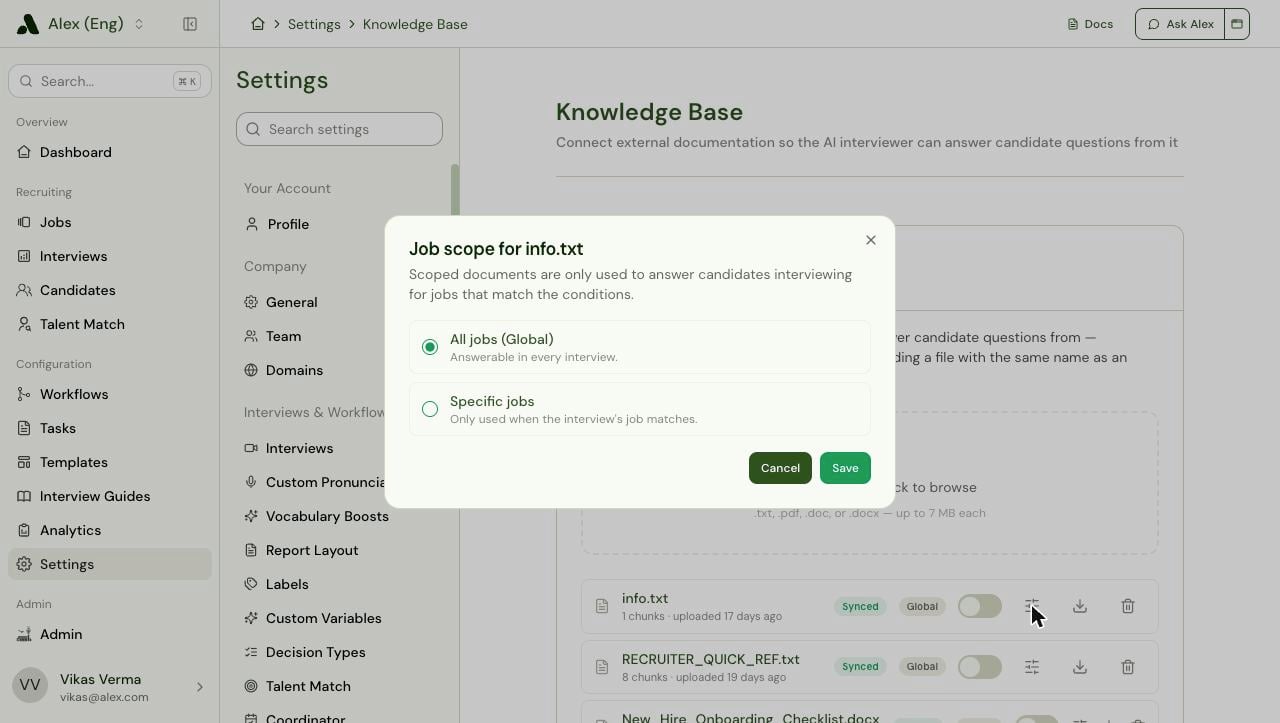
Building Conditions
Choosing Specific jobs reveals the condition builder — the same one used by the Filter by Job step in Workflows.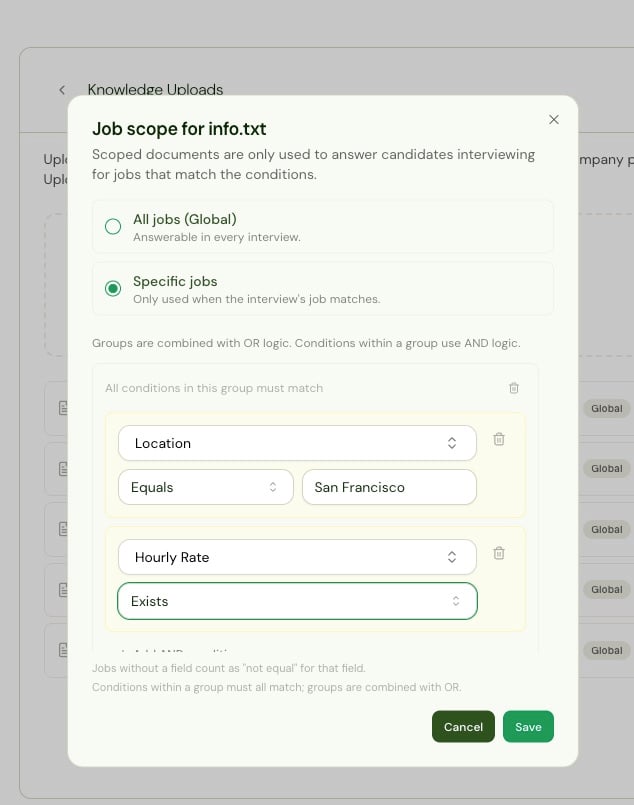
Columns
Standard job fields:
Plus every custom variable defined on jobs in your company, listed alongside them. Type in the column box to search.
Operators
For fields with a fixed set of values, such as Job Status, the value box becomes a picker rather than free text.
Combining conditions
- Conditions in the same group are joined with AND — all of them must match. Add one with Add AND condition.
- Groups are joined with OR — a job matches if it satisfies any group. Add one with Add OR group.
How Scope Is Applied
When a candidate asks a question, Alex works out which job the interview belongs to and searches:- every Global document, plus
- every scoped document whose conditions that job satisfies.
Changing a document’s scope takes effect on the next question a candidate asks. There’s no re-syncing or re-indexing involved — scope is evaluated at the moment of the search.
Worked Examples
A pay sheet for one client
A pay sheet for one client
Specific jobs →
Client Equals Acme Logistics.Only candidates interviewing for Acme jobs can be answered from it.A nursing-specific credentialing FAQ
A nursing-specific credentialing FAQ
Specific jobs →
Job Title Contains Nurse.Covers Registered Nurse, Nurse Practitioner, Travel Nurse, and so on without listing each.Two regions, one document
Two regions, one document
Specific jobs →
Location Contains London, then Add OR group → Location Contains Manchester.Matches jobs in either city.Only jobs that are still open
Only jobs that are still open
Specific jobs →
Job Status Equals Open, and Add AND condition → Client Equals Acme Logistics.Both must hold, so the document goes quiet for that client’s closed reqs.Practical Advice
- Start Global, narrow when there’s a reason. Over-scoping is the more common mistake — a document nobody can reach helps nobody, and there’s no warning when conditions match zero jobs.
- Scope on fields your ATS reliably populates.
ClientandJob Statusare usually dependable; free-text custom fields often aren’t. - Prefer Contains over Equals for titles, which vary far more than people expect between reqs.
- Check the scope badge on each document row — it summarizes the conditions at a glance, so a document that should be client-specific but reads Global stands out.