

Mine and All
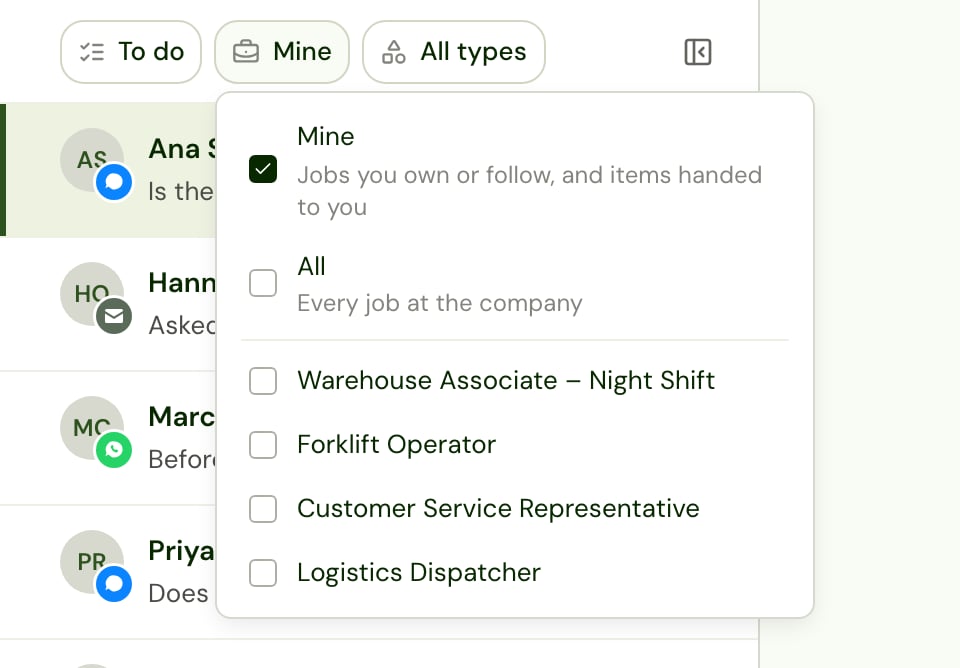
Use the Jobs filter at the top of the list to choose whose items you see.
Good to know:
- A Reply needed item is addressed to the person who paused Alex. It shows in their Mine even when they don’t own or follow the job, and in Mine for everyone on the job.
- An item handed to you shows in your Mine and To do, even when you don’t own or follow its job.
- A candidate with no job yet shows in Mine only when the item is addressed or handed to you, and otherwise only under All.
To do and Done
Use the Status filter to switch between:- To do: what still needs you. Snoozed items sit at the bottom until they come back.
- Done: what’s closed, and what you handed off.
- All: both.
One type of item
Use the Type filter to show only one type of item, such as Decide or Reply (see Item types). It offers only the types you show, and while it’s set, the Status options don’t show counts.Choose what shows in your Inbox
You can hide the types of items you don’t want to work on. Hiding a type changes only your own Inbox: your teammates still see those items, and the items themselves don’t change.- Go to Settings → Profile and open the Inbox tab. You can also select types hidden at the top of your Inbox list.
- Turn off the switch for each type you want to hide. Each type is named as it is in your list (see Item types).
- A bar under the filters says how many, for example 2 types hidden. Select it to change your choice.
- If your list is empty only because of the types you hid, it says so, with a link to change them.
- A link straight to an item of a hidden type, such as the one in a hand-off email, still opens it, with a note that its type is hidden.
Reading the list
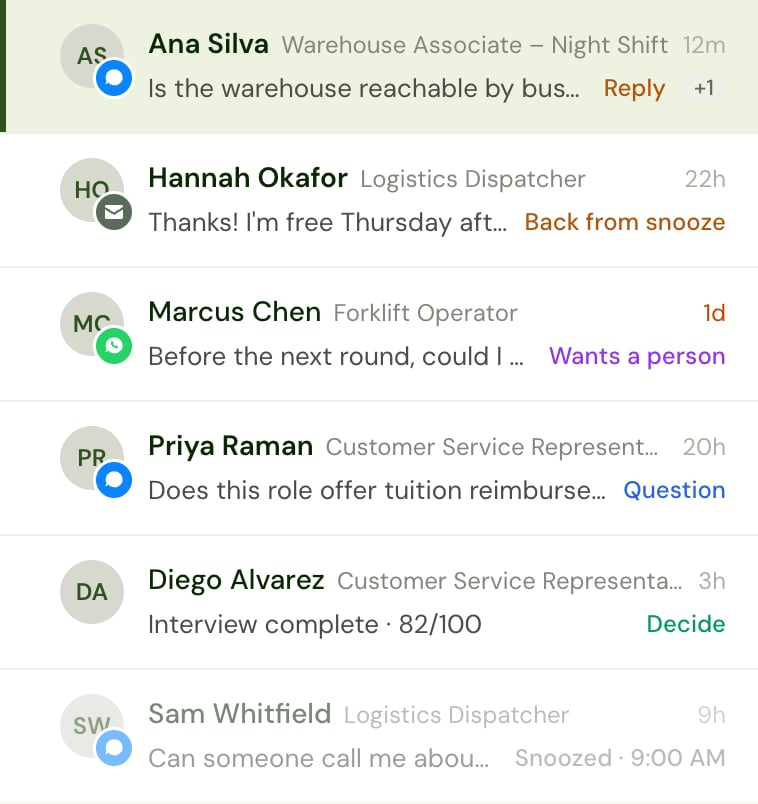
- The candidate’s name and initials.
- How long ago the latest thing happened (for example
5m,3h,2d). The time turns red once an item has been open for a day. - What they need: Reply, Accommodation, Wants a person, Question, Decide or Follow up. A snoozed row says Snoozed and when it comes back, and Back from snooze once it has, until you open it. A Done row says how it closed, or Handed off to and who has it.
- +1 (or more) when the candidate has other open items on the same job.
Opening an item
Click a row (or press J and K) to open it. The right side shows the candidate’s name, the job, and buttons to copy their email and phone number. Click the name to open their full profile.
Remind me later
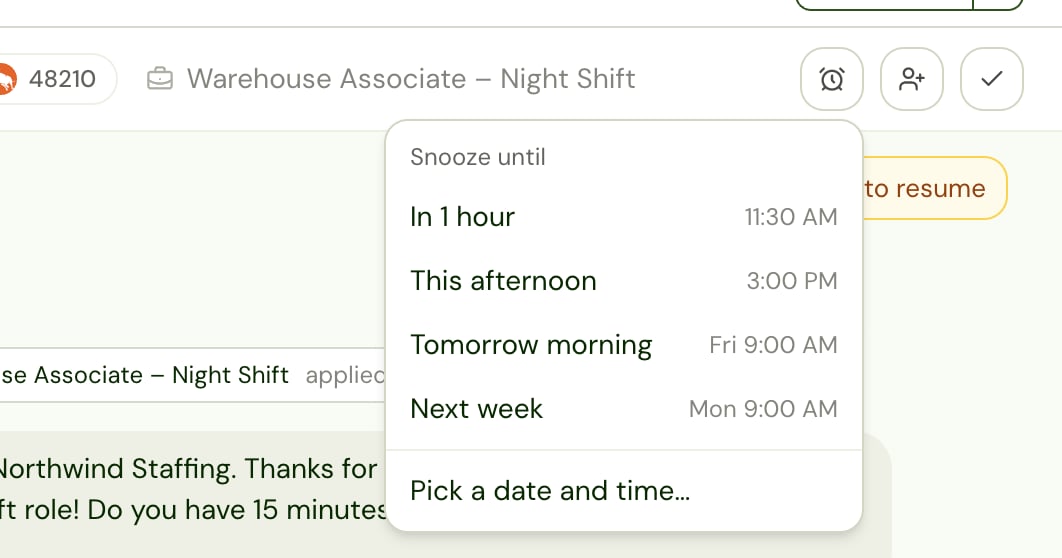
Not ready to deal with an item? Snooze it. Click the alarm clock (Remind me later) and pick when it should come back:
While snoozed, the row moves to the bottom of To do, fades, and shows when it comes back. It isn’t counted in your sidebar badge.
When it comes back, it takes its place in To do by the time it came back, and reads as new. It isn’t pushed above items that arrived after that.
Good to know:
- Snoozing is just for you. Teammates who see the same candidate still see it as normal.
- Snoozing covers the whole row, every open item for that candidate on that job.
- To bring it back early, open the row and click Unsnooze.
- Snoozing doesn’t stop anything else. If the candidate replies, or someone else decides, the item still closes.
Hand off to a teammate
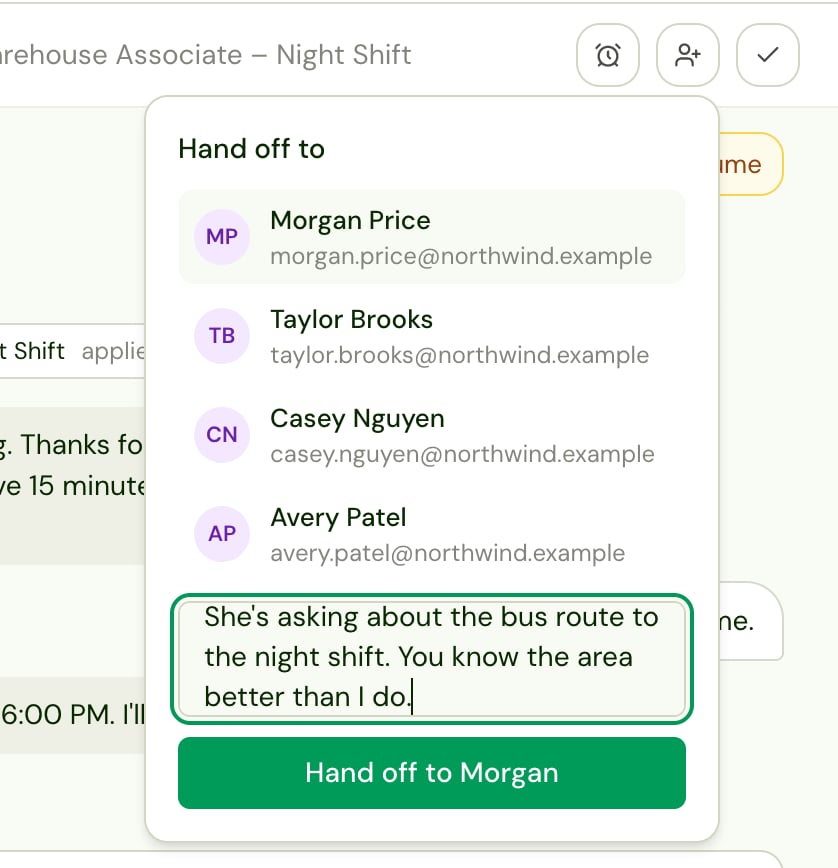
When someone else should handle an item, hand it to them:- Click the person icon (Hand off to a teammate).
- Pick a teammate. The list shows only teammates who can use the Inbox and can see this candidate’s job.
- Optionally, add a note in Add a note (optional).
- Click Hand off to and their name.
- It moves to your Done, labelled Handed off to and their name. It’s out of your badge.
- It lands in your teammate’s Mine and To do, even if they don’t own or follow the job. If they had handed it off before, it comes back to them.
- Nobody else is affected. Others on the job still have it in their To do.
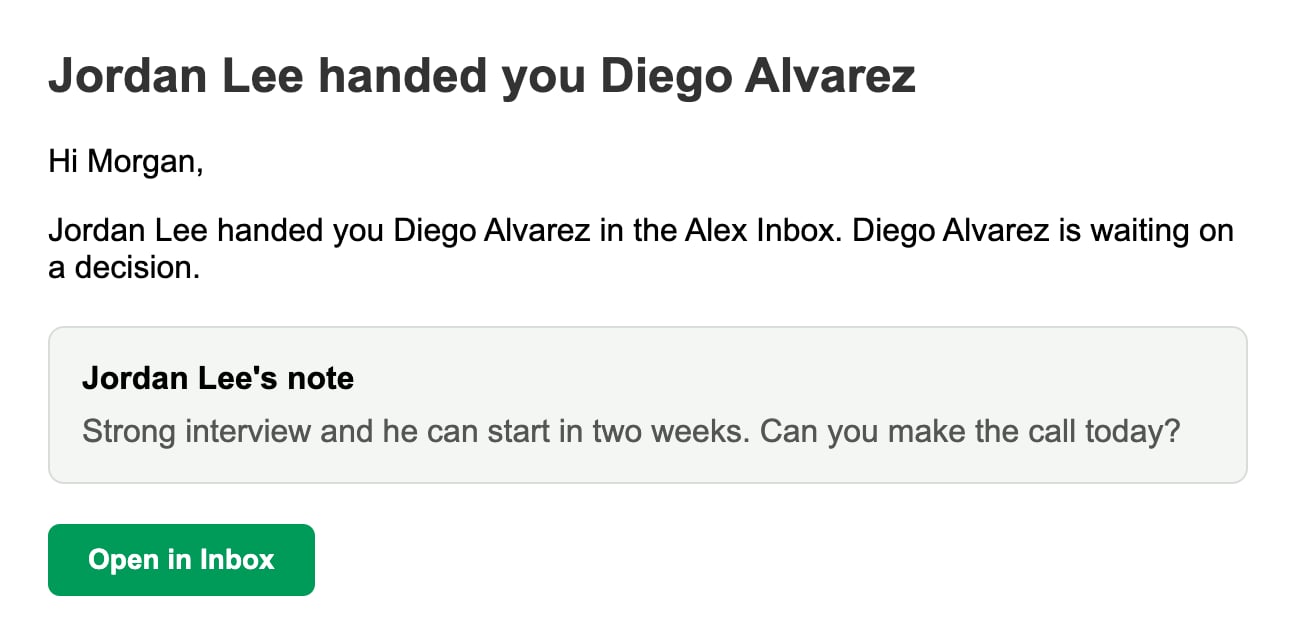
- They get an email from Alex, “Your name handed you candidate”, with your note and an Open in Inbox button that opens the item.
- The email shows in the candidate’s Activity thread, so the team can see who has it. It isn’t shown on public report links.
Mark complete
Click the check mark (Mark complete) when you’ve done what the item needed and nothing else will close it. The item closes for everyone and moves to their Done; in To do the next row opens. Mark complete works on the item the row is leading with. If the candidate has other open items on the same job, the row stays in To do and shows the next one.Mark complete on a reply
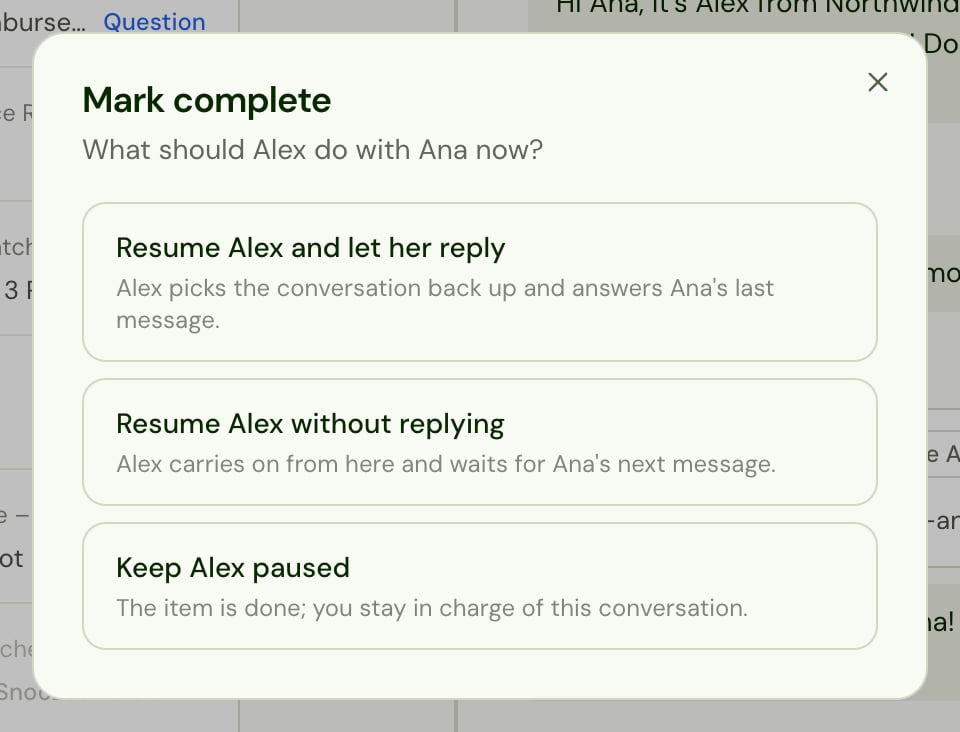
A Reply needed item asks one more question, because Alex is paused for this candidate: What should Alex do with candidate now?
Resuming Alex needs Sessions: Can edit. Without it, only Keep Alex paused is available.
Mark complete on a decision
Marking a Needs decision item complete closes it without a decision. The candidate stays undecided. Use it when the decision is being made somewhere else, or not at all. To decide, use Reject or Shortlist instead.Mark To do
A Done item offers Mark To do, to bring it back to your To do. It’s just for you: nothing changes for anyone else, including whoever closed it.- On an item you handed off, it comes back to you. Your teammate keeps it too.
- On a closed item, it’s back in your To do until you mark it complete, or until it closes again: for example, the decision changes or someone replies to the candidate. A Needs decision item also goes back to Done once your company’s time limit for undecided candidates passes.
What shows in the candidate’s Activity thread
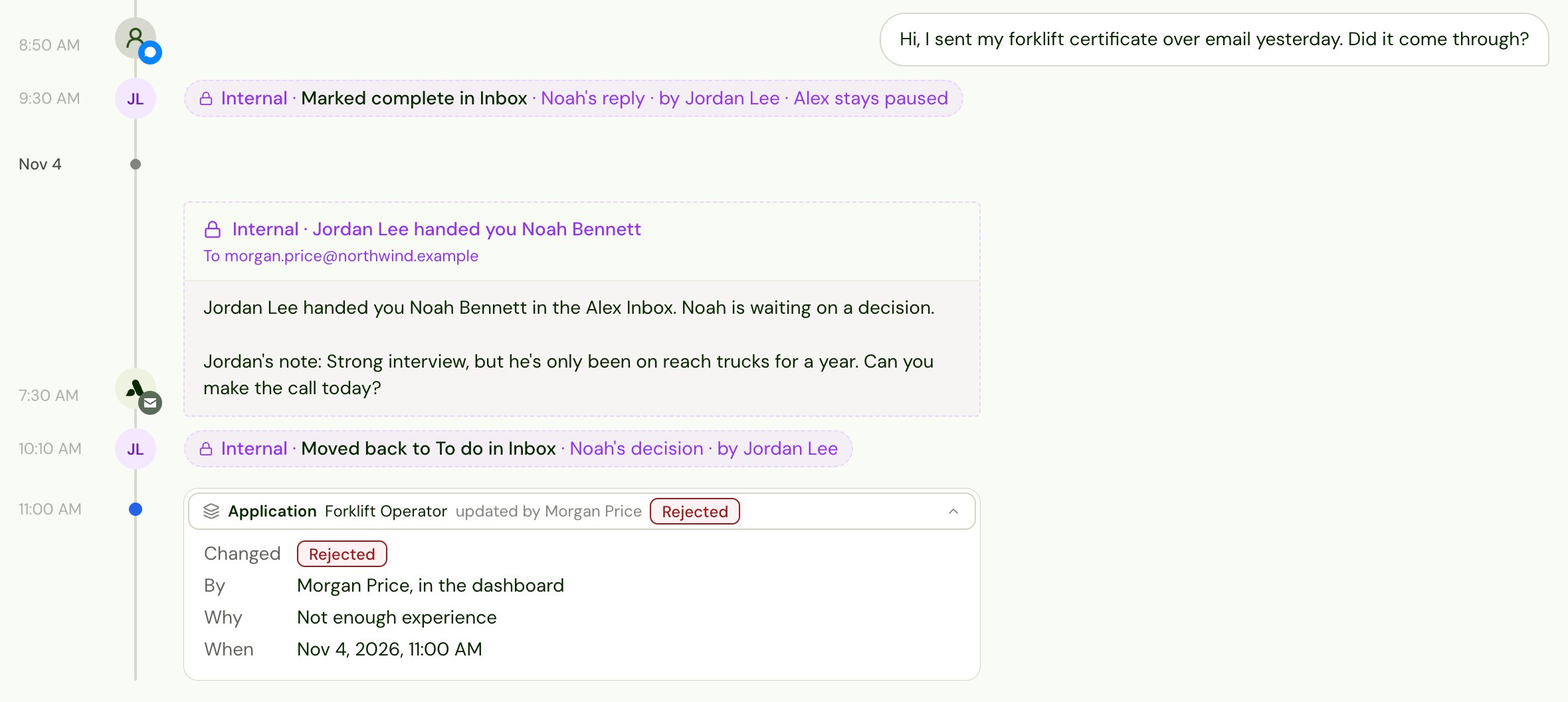
Everything you do in the Inbox that changes the candidate’s story also shows in their Activity thread, so the team sees it wherever they look.
Opening, reading and snoozing items don’t add anything to the Activity thread.
If the Inbox isn’t recording
If your company’s Inbox isn’t recording, Alex isn’t adding new items, and an empty To do says so. Items already in the Inbox stay, and still close when someone handles them. Admins see a link to Settings → Inbox to turn recording on; everyone else should ask an admin.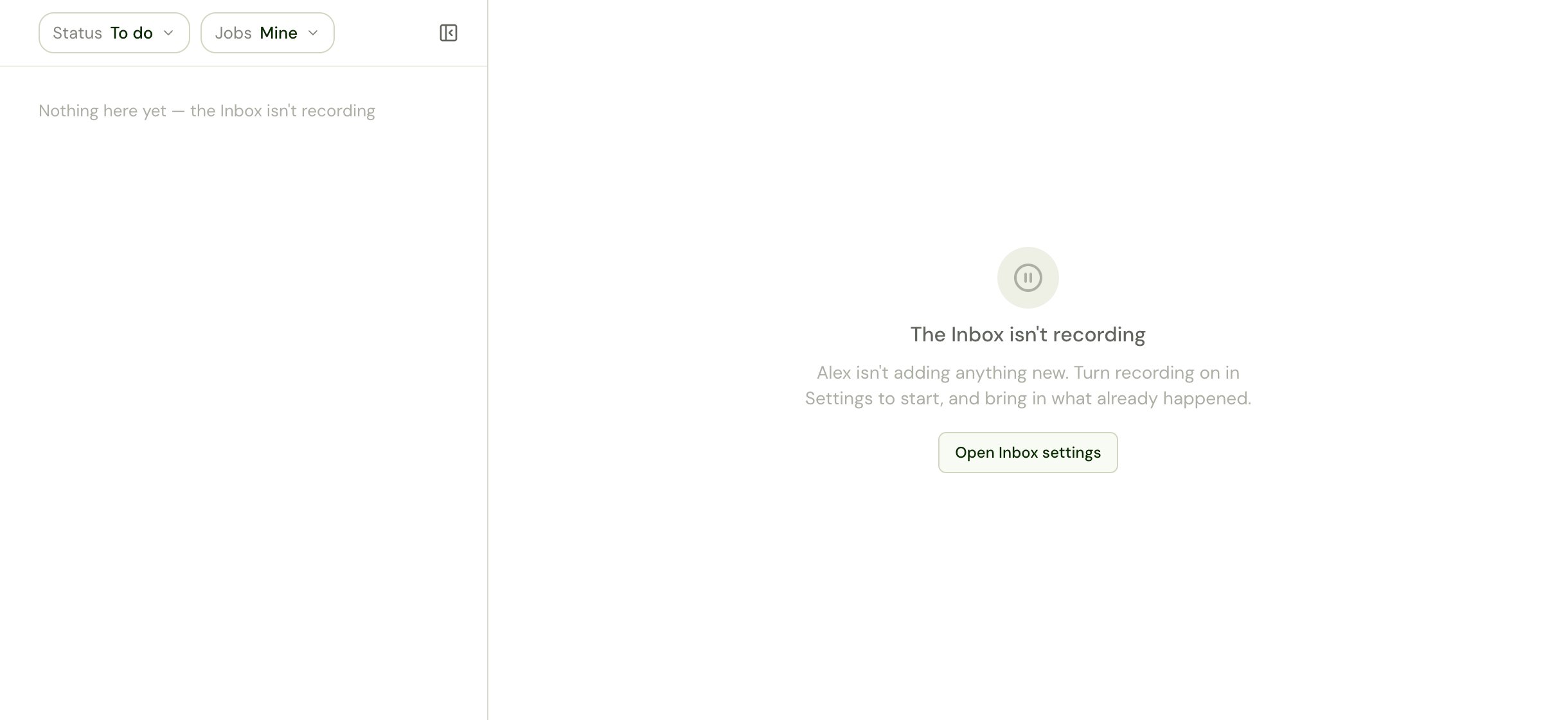
Keyboard shortcuts
Shortcuts are off while you’re typing in a box.