

Defaults
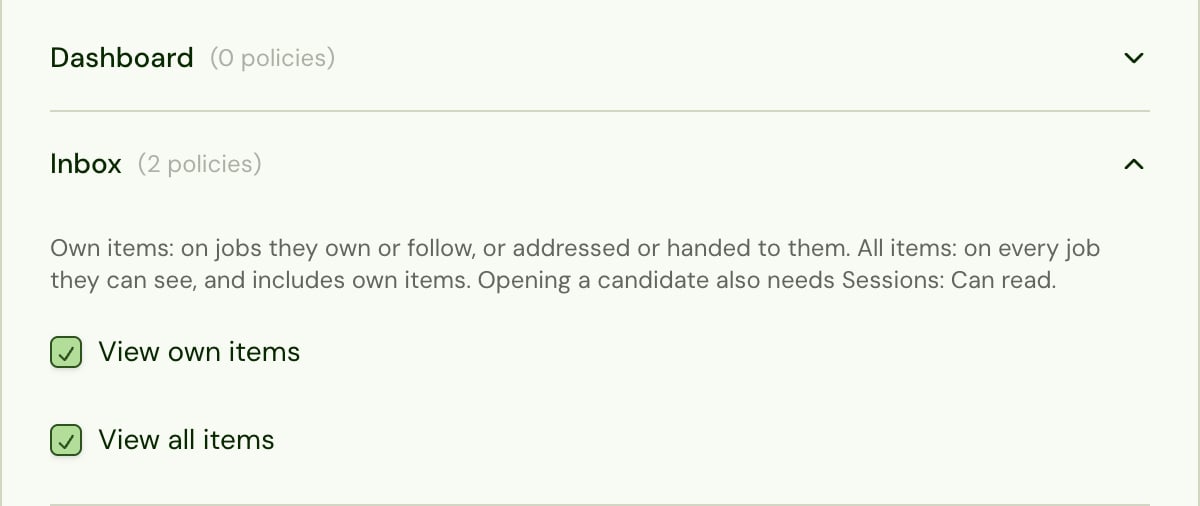
- Only the Admin role has the Inbox by default, both permissions included. The built-in Recruiter and Evaluator roles don’t.
- Built-in roles can’t be edited. To give recruiters the Inbox, create a custom role with the access they need plus Inbox: View own items, and assign it to them. Add View all items for people who should see everyone’s items, such as a team lead.
- Ticking View all items ticks View own items too, and unticking View own items unticks both.
What else they need
- Opening candidates needs Sessions: Can read. Give it to anyone with the Inbox.
- Deciding from the Inbox needs Decisions: Can set, and resuming Alex from Mark complete needs Sessions: Can edit.
- People only see candidates on jobs their role can read. A role limited to some jobs (for example by label) sees only those jobs’ items, in Mine and in All.
Hand-offs and addressed items
- Hand-offs go only to people who can use the Inbox and can see the candidate’s job. Teammates without Inbox: View own items, or whose role doesn’t reach that job, aren’t in the hand-off list.
- A Reply needed item is addressed to whoever paused Alex only when they have the Inbox. If they don’t, it still shows in Mine for everyone on the job.