

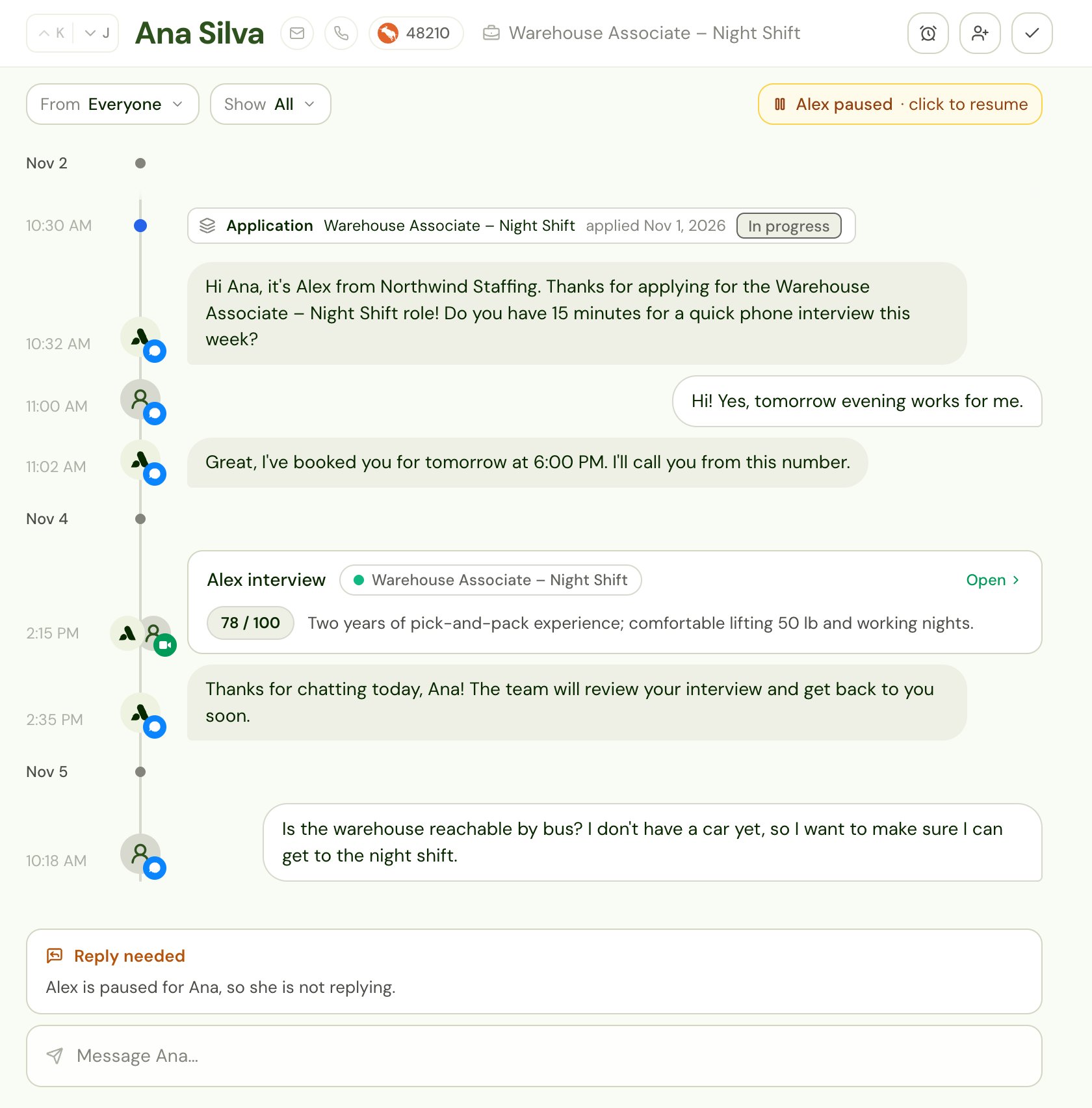
Reply needed
Opens when a candidate sends a text, WhatsApp message or email while Alex is paused for them. While Alex is paused, Alex holds the message instead of answering it. Shows in Mine for the person who paused Alex (it’s addressed to them, if they can use the Inbox), and for everyone who owns or follows the job.How to work it
You see the full conversation with the candidate, with the Reply needed note above the message box. It says Alex is paused for this candidate, so Alex isn’t replying.- To answer yourself, write your reply in the message box and send it by text, WhatsApp or email. Sending closes the item as Replied.
- To hand the conversation back to Alex, resume Alex. You can do that from the conversation, or with Mark complete (see Mark complete on a reply). Resuming closes the item as Alex resumed.
What closes it
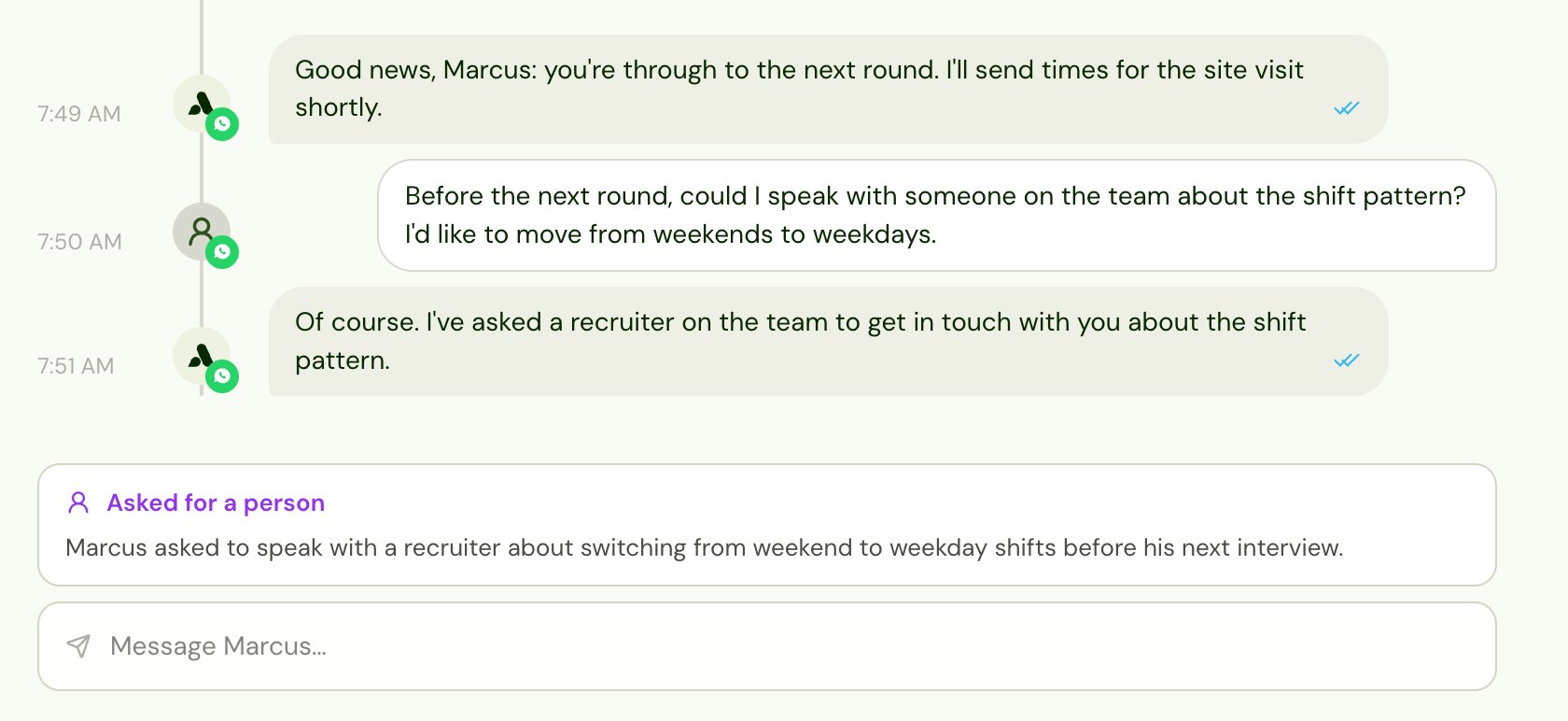
Asked for a person
Opens when a candidate asks to talk to a person:- during an interview,
- in a text conversation with Alex, or
- in an interview where nobody caught it live, and Alex finds the request when it reviews the transcript afterward.
How to work it
You see the conversation with the Asked for a person note, which says what the candidate asked for when Alex recorded it. Get in touch with the candidate however suits you:- Reply in the conversation by text, WhatsApp or email. Sending closes the item as Replied.
- Follow up another way, such as a call or a meeting, then Mark complete.
What closes it
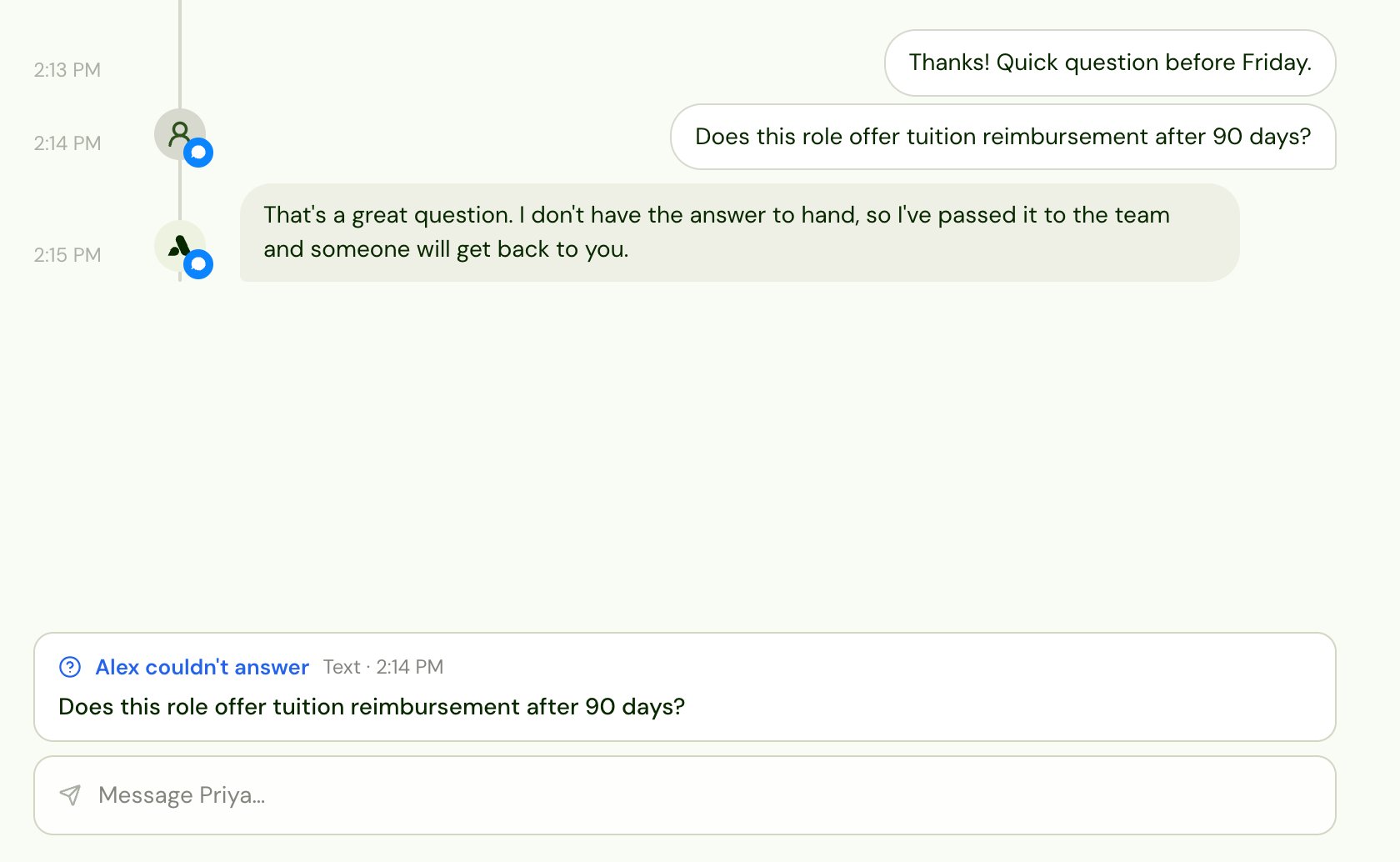
Alex couldn’t answer
Opens when a candidate asks a question Alex doesn’t have the answer to. Alex checks:- each interview, once it ends, and
- each text conversation, once it has been quiet for an hour.
How to work it
You see the conversation with the Alex couldn’t answer note, which shows the candidate’s latest unanswered question, where they asked it (text, WhatsApp, email, phone or video) and when. You can:- Answer the candidate in the message box. Sending closes the item as Answered.
- Teach Alex the answer by adding it to the job’s interview guide from the job’s unanswered questions. That also closes the item as Answered, and Alex can answer the next candidate who asks.
- Mark complete if no answer is needed.
What closes it
Needs decision
Opens when a candidate completes the last interview round on a job and nobody has decided on them yet. It opens once, when the interview completes. Shows in Mine for everyone who owns or follows the job.How to work it
You see the candidate’s interview report, with the Needs a decision note and the decision bar below it. The note shows the interview score when there is one.- Read the report.
- Optionally, add a note for the team in Add a note for the team (optional). It’s saved on the report.
- Choose Reject (or press R) and pick a reason, or Shortlist (or press S) and pick the decision. In either menu you can press 1, 2, 3 and so on to pick an option.
- If your workflow doesn’t already email the candidate about this decision, Alex asks whether to send them the decision email.
The Shortlist menu lists your company’s decisions other than Reject, such as Shortlisted or Submitted.
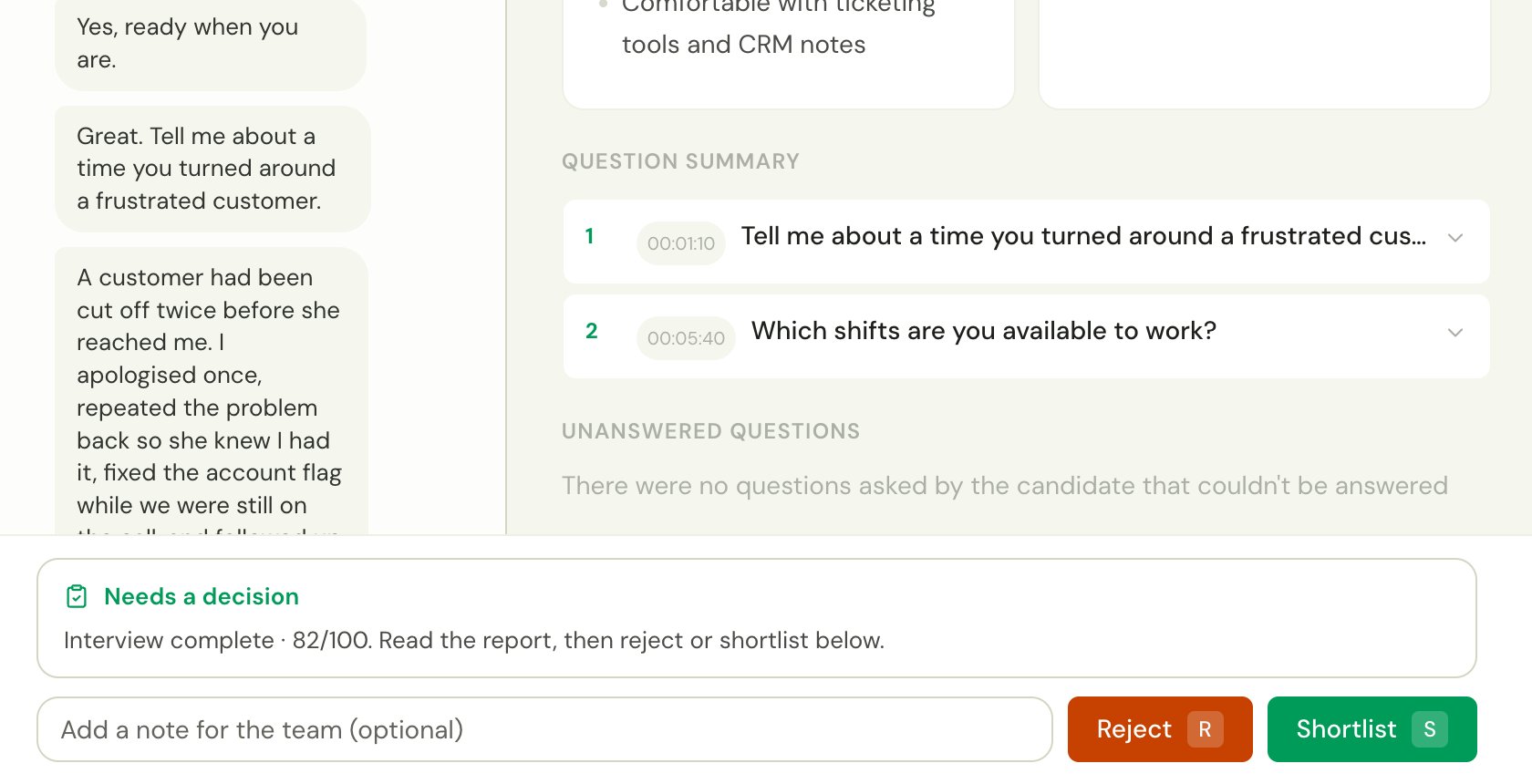
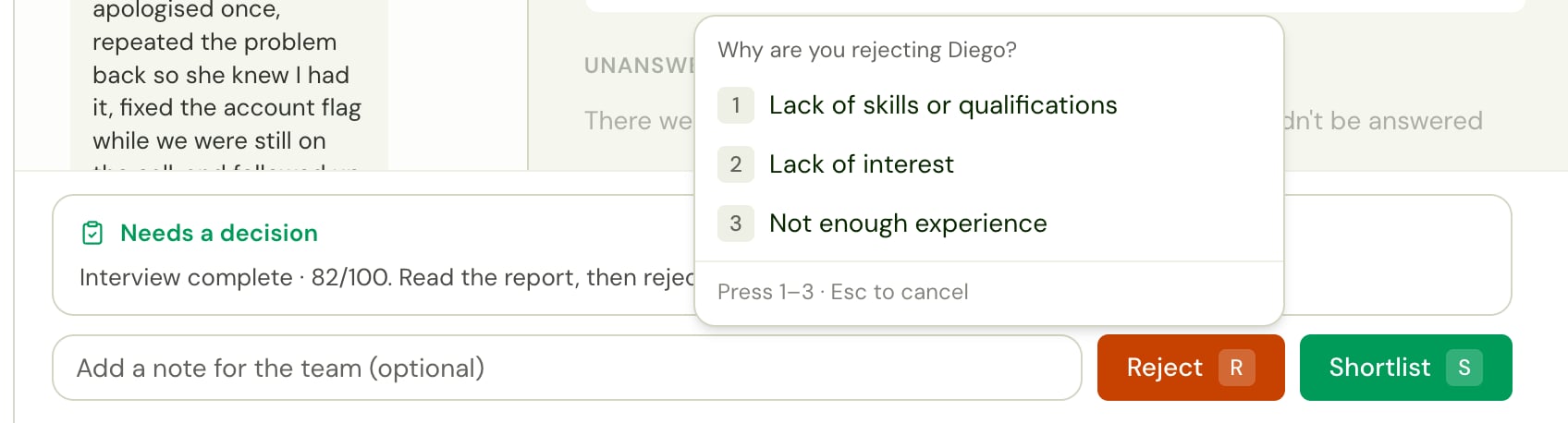
You need Decisions: Can set to see the decision bar. Without it you can read the report, but someone else has to decide.
What closes it
A Needs decision item also closes on its own when the candidate no longer qualifies, for example when they start a new interview on the job’s last round.
Follow up (Send to Inbox)
Opens when a candidate reaches a Send to Inbox step in the job’s workflow. You decide what it asks for: the step’s title is what the list shows, such as “Check salary expectations”. A candidate has one item per Send to Inbox step on a job. If they reach the same step again while the item is open, the item moves back to the top with the step’s latest title and note. Shows in Mine for everyone who owns or follows the job.How to work it
The From your workflow note shows the step’s title and its note. Below it, depending on how the step is set up, you see either:- the conversation, so you can reply to the candidate by text, WhatsApp or email, or
- the interview report, when the step comes after the interview (see the setup below).
Set up a Send to Inbox step
- Open the job’s workflow and add Send to Inbox from Actions, at the point where a person should take over. For example, after an Is check that a candidate’s expected salary is above the range.
- Give it a Title: the line your team sees in the list, such as “Check salary expectations”. You can add variables, such as the candidate’s first name.
- Optionally add a Note with what to look at or do, such as “Ask whether the shift premium closes the gap.”
- Choose the Right panel: Conversation, or Report. Report is only available when the step comes after Interview Completed or a decision, because the report doesn’t exist before the interview ends.
- Save the workflow.
The step adds a candidate only while your company’s Inbox is recording, and the rest of the workflow runs either way. It doesn’t add a candidate whose application was already withdrawn or deleted, unless the step runs because the candidate withdrew.
What closes it
A rejection doesn’t close it: the step may still need someone, for example to let the candidate know why.
Asked for an accommodation
Opens when a candidate asks for an accommodation for a disability, a health condition or a similar need, for the interview or for the job:- during an interview,
- in an email conversation with Alex, or
- by clicking Need an accommodation? on the interview welcome screen. The email still goes straight to your company’s accommodation address; the item tells you it was started.
The list shows only “Asked for an accommodation”. What the candidate asked for shows only when you open the item, and shared reports leave the item’s Activity out.
How to work it
You see the conversation with the Asked for an accommodation note. It shows what the candidate asked for in their own words, or as Alex summarized it from the interview. For a request from the welcome screen, it says when the candidate started the email and which address it went to, for example “Marisol started an accommodation request by email from the interview welcome screen on Nov 9, 2026, to [email protected]. Check that inbox for it.” Get in touch with the candidate however suits you:- Reply in the conversation by text, WhatsApp or email. Sending closes the item as Replied.
- Follow up another way, such as answering their email, then Mark complete.
What closes it
When an admin turns recording on with a backfill, requests from while it was off come back as Asked for a person. A request this Inbox already recorded as an accommodation, before recording was turned off, isn’t brought back a second time.